That image on your screen has potential. Maybe it’s a hand-drawn logo, a vintage graphic, or a custom design. You can picture it on a t-shirt, crisp and clean, or stitched onto a hat with perfect definition. But to make that leap from a digital idea to a physical product, especially for processes like screen printing and embroidery, you need to speak the right language. That language is vector. The journey from a standard photo or graphic to a scalable, production-ready format is a crucial step, and knowing how to do it right saves time, money, and frustration. Let’s explore why it’s essential and the best paths to successfully convert an image to a vector file.
Why Vectors are Non-Negotiable for Production
First, let’s demystify the “why.” Your typical JPEG or PNG is a raster image. It’s made of a fixed grid of tiny colored squares called pixels. Blow it up, and those pixels become visible as a blurry, blocky mess. This is a disaster for production.
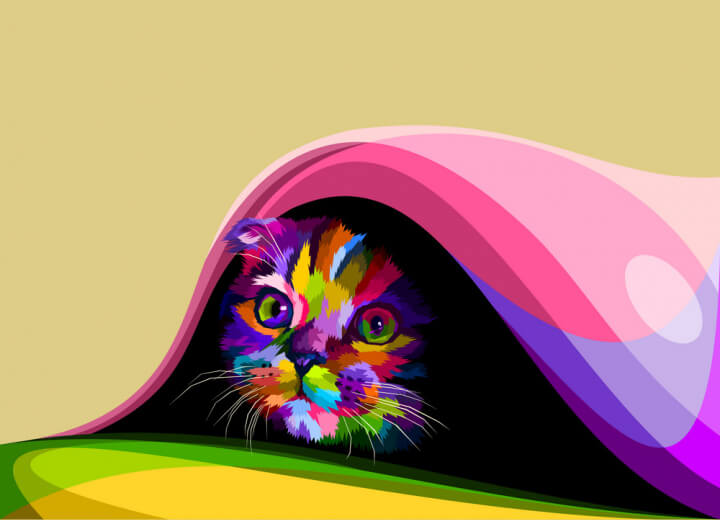
A vector file (like .AI, .EPS, or .SVG) works completely differently. It’s built on mathematical paths, points, and curves. This means it can be scaled to the size of a postage stamp or a billboard without losing a single speck of clarity. For screen printing, each vector path defines a separate color layer for your screens. For embroidery digitizing, clean vector paths give the software a perfect blueprint to trace, ensuring your stitches are sharp and accurate. Simply put, vectors give manufacturers and digitizers the clean, scalable blueprint they need to do their jobs perfectly.
The Professional’s Tool: Adobe Illustrator
When it comes to control and precision, Adobe Illustrator is the industry standard. Its “Image Trace” function is powerful, but using it effectively is an art. The key is not to rely on the default settings. Start with a high-contrast, high-resolution image for the best results. In the Image Trace panel, switch from “Color” to “Black and White” or “Silhouette” for logos. Play with the “Path,” “Corner,” and “Noise” sliders. A lower “Noise” setting ignores small specks, while adjusting “Paths” controls how detailed the tracing will be.
The real magic happens after tracing: you must expand the image and enter the editing phase. This is where you clean up the vector paths using the Direct Selection Tool (the white arrow). Delete stray points, smooth out jagged lines, and ensure all shapes are closed paths. This hands-on cleanup is what separates a usable vector from a mediocre auto-trace. For complex multi-color graphics, you may need to trace and clean each color layer separately, preparing the file for color separation in screen printing.
The Accessible Powerhouse: Inkscape
If your budget is zero, Inkscape is a phenomenal free, open-source vector graphics editor. Its “Trace Bitmap” function is robust and offers similar control to Illustrator’s tool. You can find it under the Path menu. It offers multiple trace types, including brightness cutoff for simple graphics or edge detection for sketches.
The workflow in Inkscape mirrors the professional process: trace, then edit. After tracing, ungroup the result and use the “Edit Paths by Nodes” tool to refine. The learning curve exists, but the cost of entry makes it the best starting point for hobbyists and small businesses. The vector files you create here (saved as SVG or EPS) are perfectly suitable for sending to a screen printer or for importing into embroidery digitizing software.
Online Auto-Tracers: A Cautious Shortcut
A quick web search will reveal numerous “vector conversion” websites. You upload your image, click a button, and download an .SVG file. For extremely simple, high-contrast images (think a solid black logo on a white background), these can provide a decent first draft.
However, proceed with extreme caution. These automated tools often create monstrously complex files with thousands of unnecessary anchor points, which can confuse screen printing software and cause issues in embroidery digitizing. The results are frequently “messy,” requiring significant cleanup in a proper vector editor anyway. Think of these services as a very rough first pass, not a finished product.
The Ultimate Shortcut: Hiring a Graphic Designer
Sometimes, the best tool is a skilled professional. If your image is complex, low-resolution, or critically important (like your business logo), investing in a graphic designer is a wise choice. A designer can manually redraw your image with clean, efficient vectors, ensuring it is optimized for both screen printing (with proper color separations) and embroidery (with simplified, stitch-friendly shapes). You’re paying for expertise, time savings, and a guaranteed, production-ready file. This is the most reliable path to quality.
Prepping Your Image: The Universal First Step
No matter which method you choose, your success depends entirely on your starting image.
- Seek High Resolution: The larger and sharper the original, the better.
- Maximize Contrast: A logo on a busy, low-contrast background is a nightmare to trace. If possible, provide a version with a solid background.
- Simplify: Remember, screen printing uses limited ink colors, and embroidery simplifies details. A photorealistic image with gradients will need to be stylized and simplified during the vector process. Start with the end production method in mind.
Conclusion: Building a Strong Foundation
Converting an image to a vector file isn’t just a technical step; it’s the process of building a production-ready foundation. A clean vector translates your creative vision into clear instructions for screens and stitches. Whether you take the DIY route with Illustrator or Inkscape, use an online tool for a simple graphic, or hire a professional, the goal is the same: a scalable, editable, and perfectly clean file. Taking the time to do this step correctly prevents costly errors and miscommunications down the line, ensuring your design looks exceptional on any medium. By understanding the importance of vectors and choosing the right method for your project, you confidently bridge the gap between digital art and physical product every time you convert an image to a vector file.