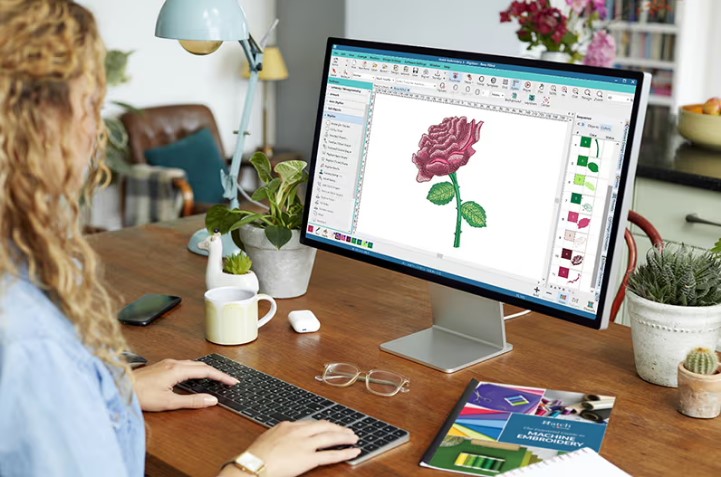
If you work with embroidery machines, you already know how important the right file format is. Many people struggle when they need to Convert Artwork to OFM File Format and are not sure where to start. OFM files are used by specific embroidery machines, and the design must be prepared the right way. A clean conversion helps your design stitch smoothly, look neat, and last longer on fabric.
In this guide, we will walk through the full process in a simple and friendly way. You will learn what OFM files are, why they matter, and how to convert artwork step by step. This article is written for beginners, small shops, and business owners who want clear results without stress.
What Is an OFM File Format?
An OFM file is a stitch file used by some embroidery machines. It tells the machine how to move the needle. It controls stitch type, stitch order, and thread changes.
Unlike image files, OFM files do not store pictures. They store stitch data. That is why proper conversion is very important. A bad file can cause broken threads or poor design quality.
Why You Need to Convert Artwork for Embroidery
Artwork files like JPG, PNG, AI, or PDF cannot be read by embroidery machines. These files must be converted into stitch files.
When artwork is converted correctly:
- Stitches stay clean
- Lines look sharp
- Text stays clear
- Fabric holds the design better
Proper conversion also helps save time and avoid rework.
Types of Artwork You Can Convert
You can convert many artwork types, such as:
- Logos
- Text designs
- Simple icons
- Line art
- Vector designs
Clean and simple artwork always gives better results during conversion.
Best File Types to Start With
Before conversion, it helps to use high-quality artwork.
Recommended formats:
- AI
- EPS
- SVG
- High-resolution PNG
Vector files are best because they keep sharp edges and smooth curves.
Step 1: Review the Artwork Carefully
Before conversion starts, check the design.
Look for:
- Small text
- Thin lines
- Too many colors
- Overlapping shapes
These details can affect stitch quality.
Step 2: Clean Up the Design
Clean artwork gives clean stitches.
This step includes:
- Removing extra points
- Fixing broken lines
- Simplifying shapes
- Adjusting text size
A neat design converts faster and stitches better.
Step 3: Choose the Right Stitch Types
Different design parts need different stitches.
Common stitch types:
- Running stitch for fine lines
- Satin stitch for borders and text
- Fill stitch for large areas
Correct stitch choice improves durability and look.
Step 4: Set Stitch Direction and Flow
Stitch direction controls how thread lays on fabric.
Good stitch flow:
- Reduces thread breaks
- Improves texture
- Adds depth to the design
Poor stitch flow can make designs look messy.
Step 5: Adjust Stitch Density
Density controls how close stitches are.
Too dense:
- Stiff fabric
- Thread breaks
Too loose:
- Gaps in design
- Weak coverage
Balanced density gives smooth results.
Step 6: Plan Color Changes
Each color means a thread change.
During conversion:
- Group same colors together
- Reduce extra color stops
- Keep color order simple
This saves time during stitching.
Step 7: Convert to OFM File Format
Once stitches are set, export the design as an OFM file.
Before saving:
- Check design size
- Confirm stitch count
- Review color order
This step prepares the file for the embroidery machine.
Step 8: Test the OFM File
Always test before final production.
Test stitching helps you:
- Spot errors
- Check alignment
- Confirm stitch quality
Testing saves material and avoids mistakes.
Common Mistakes to Avoid
Avoid these common issues:
- Using low-quality images
- Ignoring fabric type
- Overusing small text
- Skipping test runs
Simple planning can prevent these problems.
Fabric Choice Matters
Different fabrics react differently.
Examples:
- Cotton handles dense stitches well
- Stretch fabric needs lighter density
- Thick fabric needs stronger underlay
Match stitch settings to fabric type.
Why Professional Conversion Is Helpful
Professional digitizers understand:
- Machine limits
- Stitch balance
- Design flow
They know how to convert artwork into clean, machine-ready OFM files.
Benefits of Accurate OFM Conversion
Good conversion offers:
- Smooth machine run
- Clean stitching
- Long-lasting designs
- Fewer errors
It also improves customer satisfaction.
How OFM Files Help Businesses
For businesses, OFM files:
- Speed up production
- Reduce waste
- Improve design quality
- Create repeatable results
One good file can be used many times.
Final Tips for Best Results
To get the best outcome:
- Start with clean artwork
- Keep designs simple
- Test every file
- Use correct fabric settings
Good habits lead to better embroidery.
Final Thoughts
Learning how to convert artwork to the OFM file format does not have to be hard. With the right steps, tools, and testing, you can create embroidery files that stitch clean and look professional every time.
If you want reliable and accurate embroidery file conversion without stress, Digitizing Buddy offers expert support and quality results to help your designs stitch perfectly on any machine.